
How to connect to your proxy
Find your host, port, username and password, and generate proxy lines.
Your proxy details are on the card for each package you bought.
Find your details
Go to Proxies and open My proxies. Each package shows its Host, Port, Username and Password, plus the data left and when it expires.
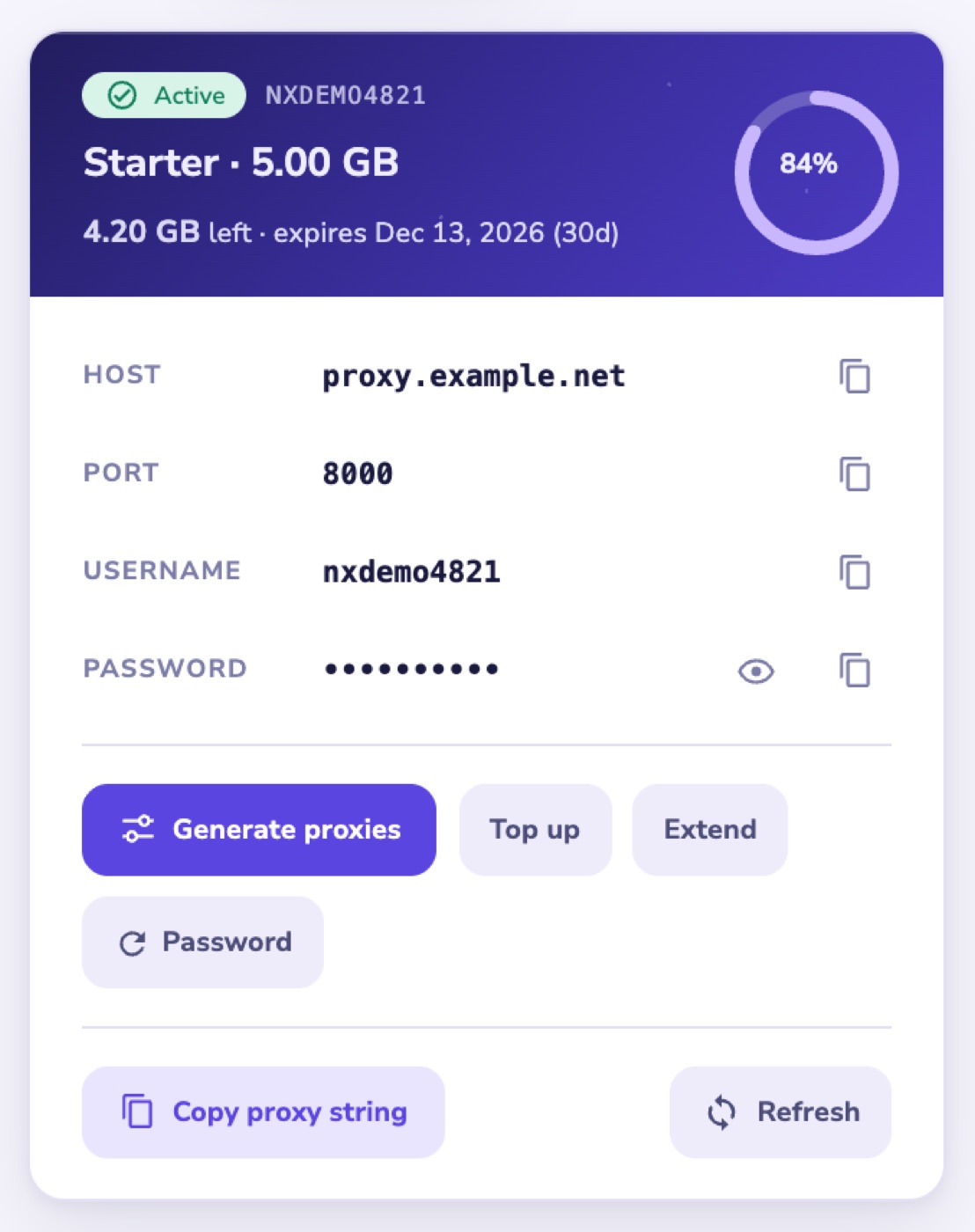
Connect
Enter the host, port, username and password in your browser, app or tool's proxy settings. Proxies sign in with your username and password, so there's no IP address to whitelist.
Generate proxy lines
Select Generate proxies to create ready-made lines for your tools. You can choose:
- the country, region or city
- Sticky session, which keeps the same IP for about 5 minutes per line
- how many lines, up to 100
- the format: ip:port:user:pass, user:pass:ip:port, ip:port@user:pass or user:pass@ip:port
Not connecting?
- Check the username and password are copied exactly.
- If you changed the password with Password, use the new one. Sessions using the old one stop within a minute.
- Check the data left and the expiry date. Usage updates about once an hour.
- Some websites block proxies. Use the "Will it work on…" check on the Proxies page before you buy.
- Before a package expires, Extend adds 30 days. Once it has expired, you'll need to buy a new one.