

In 2025, global eSIM adoption crossed 320 million active users, with Africa becoming one of the fastest-growing regions. Nigeria alone has seen a 65% increase in eSIM usage among travelers, remote workers, and online entrepreneurs who want faster, cheaper, and more flexible mobile connectivity.
As more Nigerians upgrade to Samsung devices that support eSIM, knowing how to activate eSIM on Samsung has become essential. Whether you’re preparing for travel, switching networks, or trying to avoid high roaming costs, eSIM technology makes everything smoother and far more convenient.
What You Need Before You Activate eSIM on Samsung
Before you begin, here’s what you must have ready:
- Confirm your Samsung is eSIM-compatible
Not all Samsung phones support eSIM. If you’re not sure, check the updated list of Nigeria-ready Samsung eSIM devices. Before you activate an eSIM on Samsung, make sure your device actually supports eSIM. You can confirm this by checking Samsung’s official specs or using the global GSMA eSIM device checker
- Make sure your phone is carrier-unlocked
If your Samsung is locked to a specific network (like AT&T or Verizon), eSIM activation won’t work.
- Have your QR code on another screen
You cannot scan a QR code on the same device you’re activating.
Use a laptop, another phone, or print it out.
- Ensure your internet connection is stable
Your Samsung must stay connected during installation.
Even a small interruption can cause failure.
- Know that each QR code works only once
Once you scan it, you cannot reuse it or transfer it to another device.
- Don’t delete your eSIM after activation
If you remove it, it becomes permanently unusable. This is a common mistake new users make, avoid it.
How to Activate eSIM on Samsung Using a QR Code
This is the easiest and most popular method.
Here’s how to activate eSIM on Samsung using the QR code from Nexar.
Step 1: Check your email for your QR code
Open the email we sent you and check for your QR code
Step 2: Open your Samsung Settings
Go to:
Settings → Connections → SIM Card Manager → Add eSIM
For model-specific screenshots and the exact menu labels you’ll see while scanning the QR code, follow Samsung’s official guide on how to use an eSIM with your samsung phone.
Step 3: Scan your eSIM QR code
Your phone will open the camera.
Point it at the QR code on another screen or on paper.
Step 4: Follow the on-screen prompts
Tap Add or Confirm depending on your Samsung model.
Step 5: Wait for installation to complete
Don’t close the screen or turn off your internet.
Detailed Steps (QR Method)
Step 1:
Go to Settings → Connections
Step 2:
Tap SIM Card Manager
Step 3:
Tap Add mobile plan
Step 4:
Choose Scan carrier QR code
Step 5:
Tap Add/Confirm to save your eSIM profile.
How to Manually Activate eSIM on Samsung (No QR Code)
If your QR code isn’t scanning, or you prefer manual activation, this method is for you.
Step 1: Open your email
Open your email for the SM-DP+ address + Activation Code
Every Nexar eSIM comes with both options.
Step 2: Open Samsung Settings
Go to:
Settings → Connections → SIM Card Manager → Add eSIM
Step 3: Scan QR code
Choose “Scan QR from service provider”
Then tap Enter activation code manually
Step 4: Enter the SM-DP+ details
Copy and paste from your email (or type manually) then tap Add/Confirm
Step 5: Turn ON your eSIM
Once installation is done, toggle it ON.
Detailed Steps (Manual Method)
Step 1:
Go to Settings → Connections
Step 2:
Open SIM Card Manager
Step 3:
Tap Add eSIM
Step 4:
Tap Scan QR from service provider → Add using activation code
Step 5:
Enter the activation code and SM-DP+ details
Step 6:
Tap Confirm/Add and turn ON your eSIM
How to Use Your eSIM on Samsung After Installation
After you activate eSIM on Samsung, here’s how to actually use it when you land abroad:
Step 1: Turn ON your eSIM
Go to:
Settings → Connections → SIM Card Manager
Toggle your eSIM ON and set it as Mobile Data.
Step 2: Turn ON Data Roaming
Go to:
Settings → Connections → Mobile Networks → Data Roaming
Your eSIM will now connect to the local network automatically.
Why Choose Nexar for Your Samsung eSIM? (Conversational)
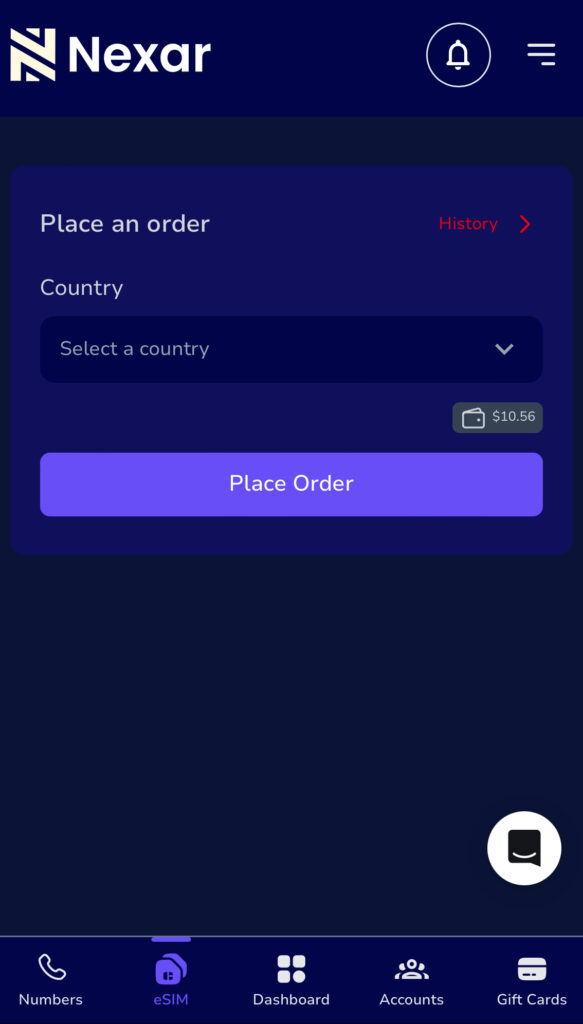
If you’re a Nigerian, the truth is simple: not all eSIM providers are created for you.
Here’s why Nexar is the best option:
- Nexar works specifically for Nigerians
You don’t need a foreign card, PayPal, or USD balance. You pay in Naira, instantly.
- Fast delivery: your eSIM QR code arrives in seconds
No delays, no stress, no long waits.
- Wide network coverage
Nexar eSIMs work in over 100+ countries.
Perfect for Nigerians traveling for school, work, tourism, or japa.
- Affordable and transparent pricing
No hidden charges. Just choose your destination and get your plan.
- 24/7 Nigerian customer support
You don’t talk to bots, real humans assist you.
- Beginner-friendly installation
Even if it’s your first time using an eSIM, Nexar guides you step-by-step.
FAQs About Samsung eSIM Activation in Nigeria
1. Can all Samsung phones use eSIM?
No. Only specific models (S21 and newer + some A-series + Fold + Flip) support eSIM.
2. Do I need Wi-Fi to activate my eSIM on Samsung?
Yes. Your phone must stay connected during setup.
3. What if my QR code is not scanning?
Use the manual activation method instead.
4. Can I use the same QR code on two phones?
No. Each QR code works once only.
5. What happens if I remove my eSIM?
It becomes invalid permanently.
Always avoid deleting your eSIM.
6. Can I pay for Nexar eSIM in Naira?
Yes. Nexar is fully Nigeria-friendly.
Final Thoughts
It is easy to activate eSIM on Samsung in Nigeria as long as you follow the correct steps. Whether you choose QR or manual installation, your eSIM will be ready to use in minutes. To avoid installation errors, first confirm that your Samsung model supports eSIM. You can quickly verify this using our updated Nexar list of eSIM-compatible devices in Nigeria.
And with Nexar, Nigerians get fast delivery, affordable plans, and reliable support tailored to African travelers.
Ready to activate your Samsung eSIM?
Visit the Nexar website and get your eSIM instantly.